
GM CarPlay Adaptor
More Information & FAQ
Welcome to the official support and information hub for the GM CarPlay Wireless Adapter. This page provides a comprehensive breakdown of how the product works, compatibility, setup help, troubleshooting, FAQs, and OTA (firmware) upgrade instructions.

GM Instruments Pty Ltd
GM Wireless CarPlay Adaptor | Apple CarPlay/Android Auto Adaptor


Product Overview
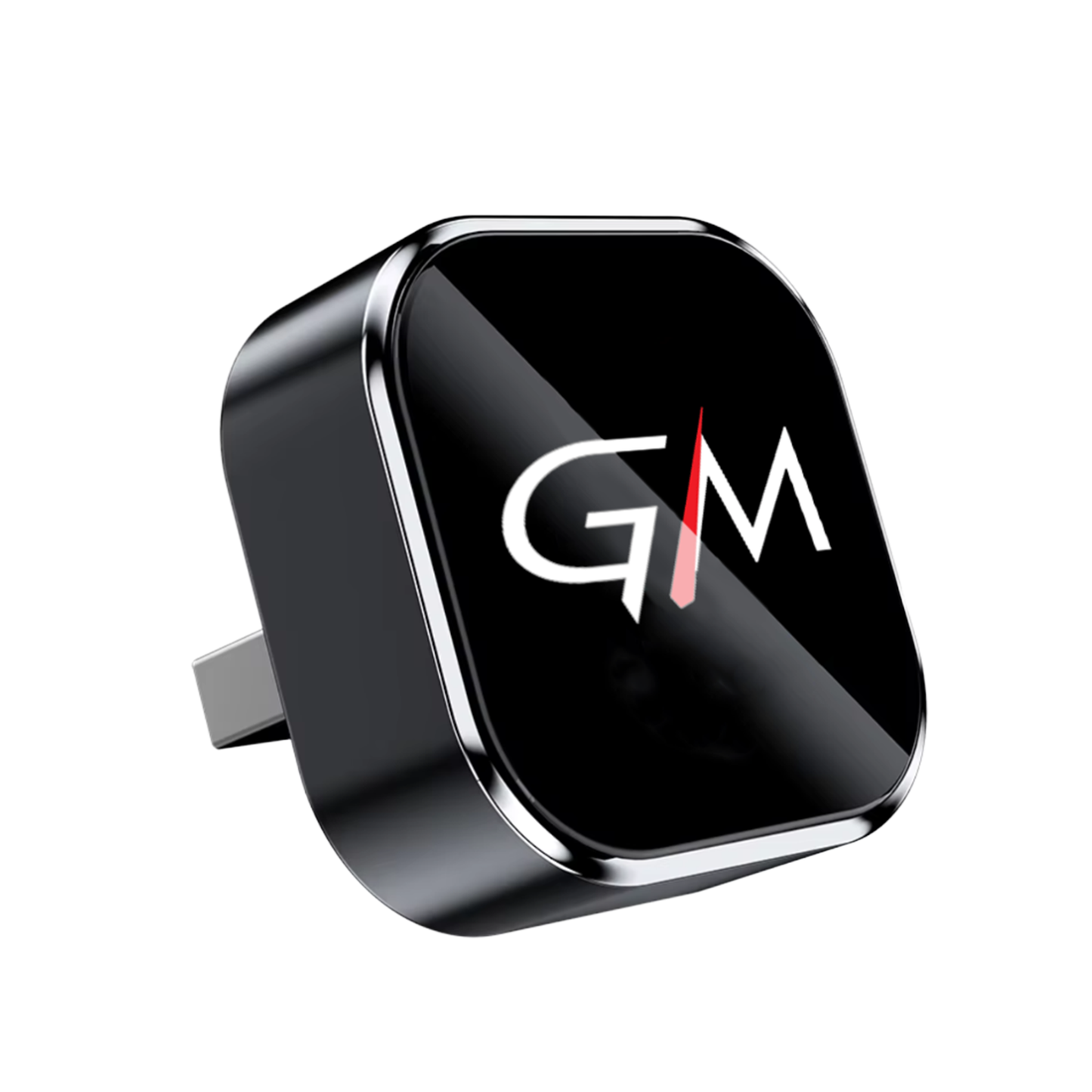
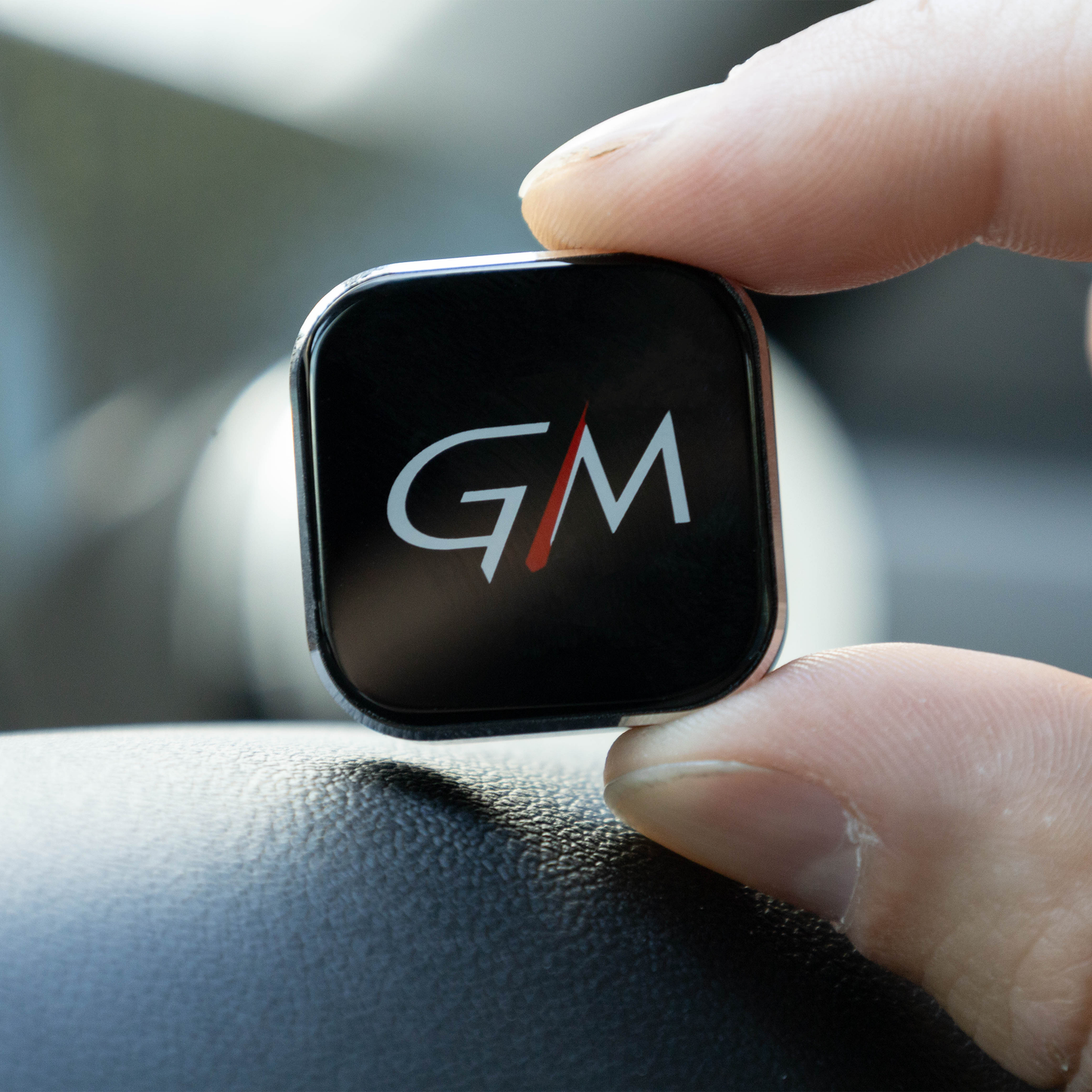
The GM CarPlay Adaptor converts your existing wired Apple CarPlay or wired Android Auto system into a wireless experience. Simply plug the adaptor into your vehicle’s USB or USB-C port and enjoy seamless, cable-free connectivity with your iPhone or Android phone.
Key Features
- Wirelessly enables Apple CarPlay & Android Auto
- Simple plug-and-play setup
- Auto-reconnect once paired
- Compact, lightweight, modern design
- OTA (over-the-air) firmware updates for long-term support
- Dual-band Wi-Fi (2.4GHz / 5GHz) for stable performance
- Compatible with iPhone 6 & newer (iOS10+), Android 11+
- Bluetooth + Wi-Fi high-performance modules
- USB-A or USB-C connection depending on your vehicle
What's in the Box
1× GM Wireless CarPlay Adapter
1× USB to USB-C Adaptor
1× User Manual
Compatibility
Your vehicle MUST have factory-wired Apple CarPlay or wired Android Auto built in.
Compatible With:
- Vehicles with wired CarPlay from 2016+
- Vehicles with wired Android Auto from 2018+
- Aftermarket head units that support wired CarPlay/Android Auto
(e.g., Alpine, Pioneer, Kenwood, Sony, JVC)
Not Compatible With:
- Cars that only support wireless CarPlay natively
- Cars with no CarPlay/Android Auto
- Cars requiring proprietary dongles
- Certain vehicles with restricted USB data ports
IF UNSURE, PLUG YOUR PHONE IN WITH A CABLE. IF THE APPLE CARPLAY/ANDROID AUTO POPUP APPEARS → YOUR CAR IS COMPATIBLE.
How the Device Works – Technical Explanation
- Your phone first connects to the adaptor via Bluetooth.
- Bluetooth handles the initial handshake.
- The adaptor then switches to Wi-Fi for the actual CarPlay/Android Auto data transmission.
- Dual-band Wi-Fi (2.4G & 5G) enables low latency and stable audio/video signals.
- On future starts, the adaptor automatically reconnects as long as your phone’s Wi-Fi and Bluetooth are ON.
Setup Instructions
Apple CarPlay Setup
- Start your vehicle.
- Plug the GM CarPlay Adapter into the USB/USB-C port.
- Wait 10–15 seconds – the CarPlay connection window will appear (manual page 5). Manual-Redone
- On your iPhone, go to Settings → Bluetooth → “GM CarPlay-XXXX”
- Tap Pair and accept all prompts including Contacts (manual page 4). Manual-Redone
- CarPlay will automatically launch.
Android Auto Setup
- Turn ON Bluetooth + Wi-Fi.
- Search for the adaptor in Bluetooth.
- After pairing, Android Auto will connect automatically.
(If your car defaults to CarPlay mode, you may need to switch to Android Auto manually.)
OTA Firmware Upgrades (Mobile App Coming Soon)
The GM CarPlay Adaptor supports firmware updates to fix bugs and add new features.
- Enable Wi-Fi on your phone.
- Connect to “GM CarPlay-XXXX”
Password: 12345678 or 88888888 - Open browser → enter: 192.168.1.101
- Access update menu.
- Tap Online Update or load update package.
- Wait for the upgrade to complete.
PLEASE ENSURE YOU DO NOT HAVE A VPN ENABLED AS THIS CAUSES THE IP TO NOT BE REACHED.
FAQ
MY CAR DOESN’T SHOW THE ADAPTER. WHAT DO I DO?
Possible causes:
- Your phone has defective Wi-Fi/Bluetooth
- The adaptor has pairing memory conflict
- Phone settings issues
Try:
- Reset network settings
- “Forget this device” in Bluetooth
- Re-pair cleanly
- Try a second phone to isolate the issue
AUDIO SOUNDS DISTORTED OR DELAYED.
- Another Bluetooth device may be interfering
- Reset your audio output to CarPlay
- Turn Bluetooth OFF and ON
- Clear apps running in the background
CARPLAY DISCONNECTS RANDOMLY.
Possible causes:
- Weak Wi-Fi environment
- Multiple Bluetooth attempts
- Phone settings conflict
Solutions:
- Ensure Wi-Fi is ON and not connected to other networks
- Reset iPhone network settings
- Enable “Auto-Join” for GM CarPlay-XXXX in Wi-Fi settings
- Delete pairing history and re-pair cleanly
WHAT IS THE WI-FI PASSWORD FOR THE ADAPTER?
- 12345678 or 88888888
(Bluetooth handles pairing; Wi-Fi is used for data transfer.)
WHY DOES THE DEVICE GET WARM?
This is normal - Wireless CarPlay runs over 5GHz Wi-Fi and requires continuous real-time decoding, which generates mild heat.
DOES THIS SUPPORT SCREEN MIRRORING?
No. - It only converts wired CarPlay/Android Auto to wireless.
DOES IT WORK WITH BOTH USB-A AND USB-C?
Yes - The product includes USB-A to USB-C adaptor.
DOES THE ADAPTOR REDUCE CARPLAY FEATURES?
No.
You keep full functionality:
- Maps
- Calls + Messages
- Music apps
- Siri
- Dashboard UI
- Steering wheel controls
WILL THIS AFFECT MY CAR WARRANTY?
No. - It does not modify the car, ECU, or wiring. It's just a USB accessory.
I UPDATED MY PHONE AND NOW IT WON’T CONNECT.
- “Forget This Device”
- Reset Network Settings
- Re-pair
- Install latest OTA update